list link on bottom
Let’s install Windows 95 on Virtual Box virtual machine to experience the early Microsoft operating system’s interface, apps, and more…
In 1995 Microsoft launched Windows 95 with a Start button to the lower left for the first time, from which functions and programs could be accessed even more easily. Plug and play usually saved users the hassle of installing hardware drivers for newly connected devices. Windows 95 was running on 32-bit and was the standard operating system for the first PCs with CD-ROM. In addition, the classic games “Solitaire” and “Minesweeper” made their PC debut here.
Well, if you are not born in the ’90s and still want to experience OS made possible today’s Windows OS comes into existence, then follow this tutorial.
It is doesn’t matter you are on Windows 10/11, macOS, or Linux, the procedure given here to set up Windows 95 will be the same for all of them.
1. Download Win 95 OSR 2 ISO File and Product Key -free
The first thing we need to set up Win 95 Virtual machine is its ISO file that is available free of cost with a product key on Archive.org. Just visit this link and click on the ISO Image. [1]

2. Run VirtualBox
Now, run VirtualBox on your respective operating system. If you don’t have then visit virtualbox.org and download the setup to install it.
3. Create Windows 95 Virtual machine
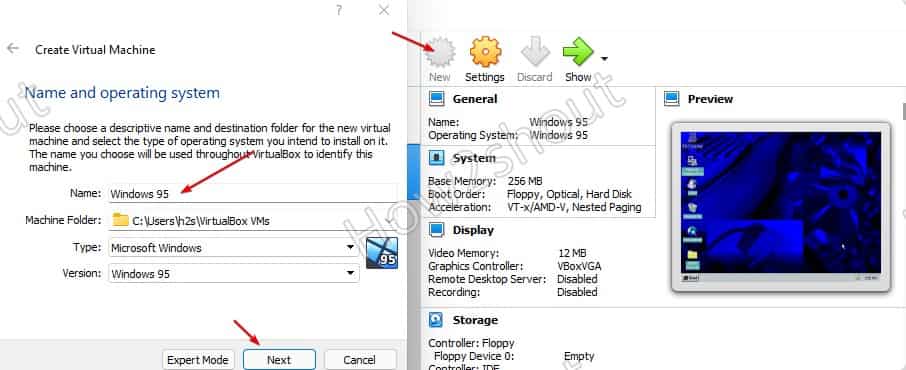
- Click on the New button.
- In the name box type- Windows 95, the rest of the settings will automatically get set.
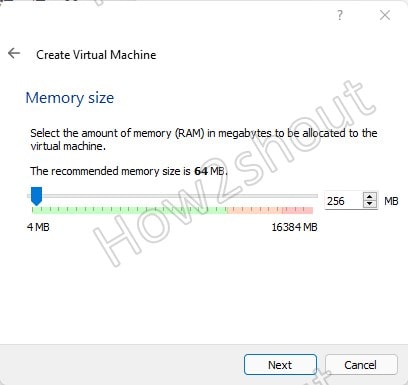
- By default, the VirtualBox will set the memory to 64MB, however, you can select 256 MB for better performance.
- Hit the Next button and create a Virtual Disk. Let the default options selected such as VDI Image and Dynamic allocation.
- Also, let the 2GB be selected as disk size for your Virtual disk.


4. Start Virtual Machine
Once you have created the VM, it shows on the left side panel of VirtualBox, select it and click on the Start button.
5. Add ISO file as boot medium
As you start the Virtual machine, it will ask you to choose the start-up disk. Click on the Folder icon and then Add button.

Select the downloaded Windows 95 ISO and then from the Startup disk area select and attach the Win 95 ISO to VM by clicking on the “Choose” button.

Finally, click on the Start button.

6. Start Windows 95 VM installation Wizard
As the VM gets booted, you will see the installation wizard. Press the Enter key to start the installation setup…

Follow the Wizard, when it asks you to configure the unallocated disk space, select it.

Enable the Large disk support.

7. Enter Windows 95 product key
The key has been already given on the page from where you have downloaded Win 95 ISO. Nevertheless, here it is to use- 34698-OEM-0039682-72135

Select “Network Adapter” and “Sound, MIDI or Video Capture Card“.

We don’t need a start disk here, thus select “No, I do not want a start disk”.

Finally, once the installation process is completed, click on the Devices button -> Optical Drives and select “Win95 OSR2.ISO” to deselect it.

Click on the Finish button to restart the Virtual machine.

Now, we have the Windows 95 Virtual machine running on VirtualBox, start experiencing the reminiscent of vintage Windows OS.
 .
.
Other Articles:
list link / daftar link
- ^ link and click on the ISO Image. (archive.org)
